
BattleRecorder
Relive your best BF2142 moments from a whole new angle! The game’s built-in BattleRecorder records your matches, and BattleDirector lets you replay them with a free camera, perfect for highlights and cinematic shots.
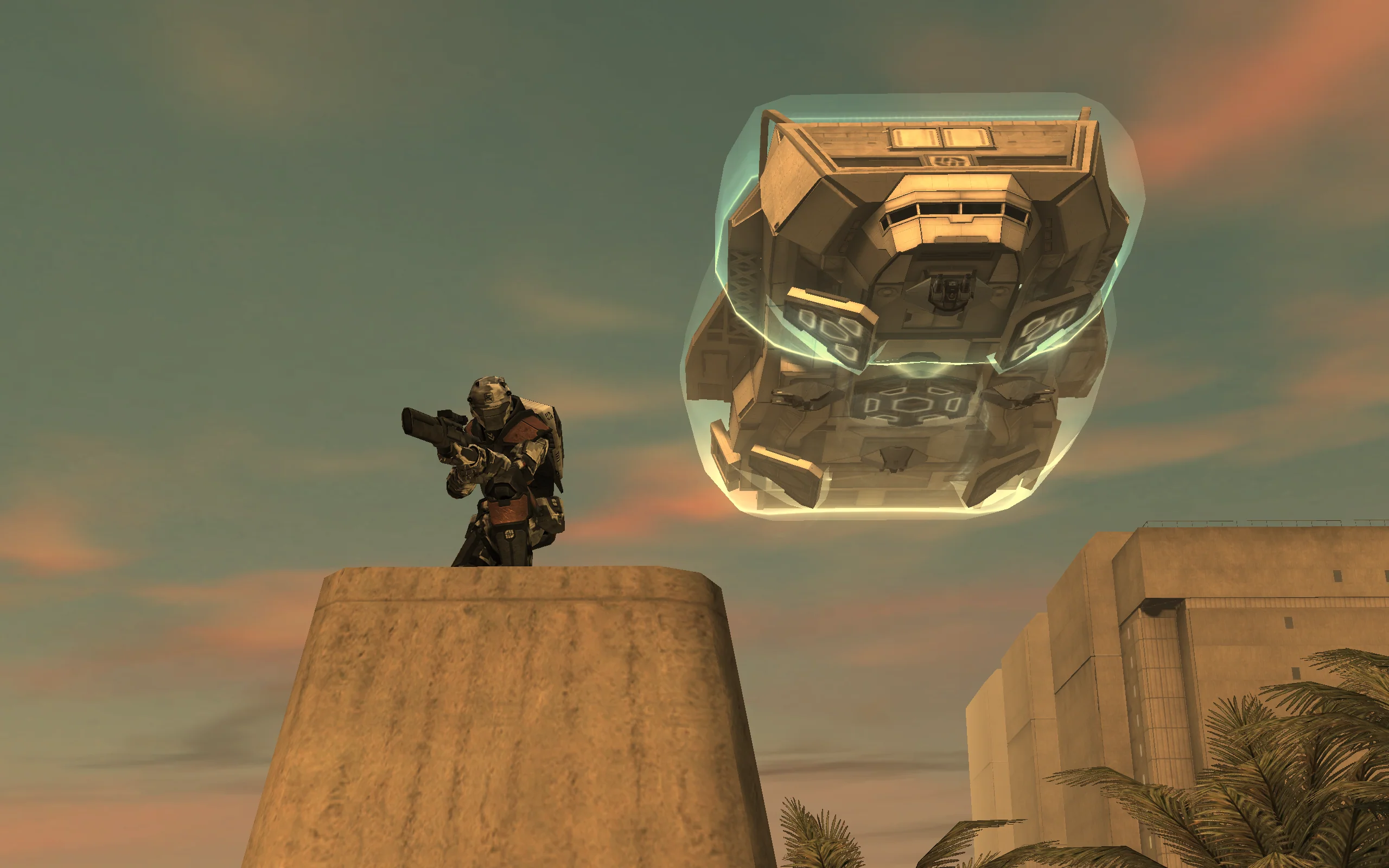
Source: ordinary_chicken @ BF2142 Reclamation
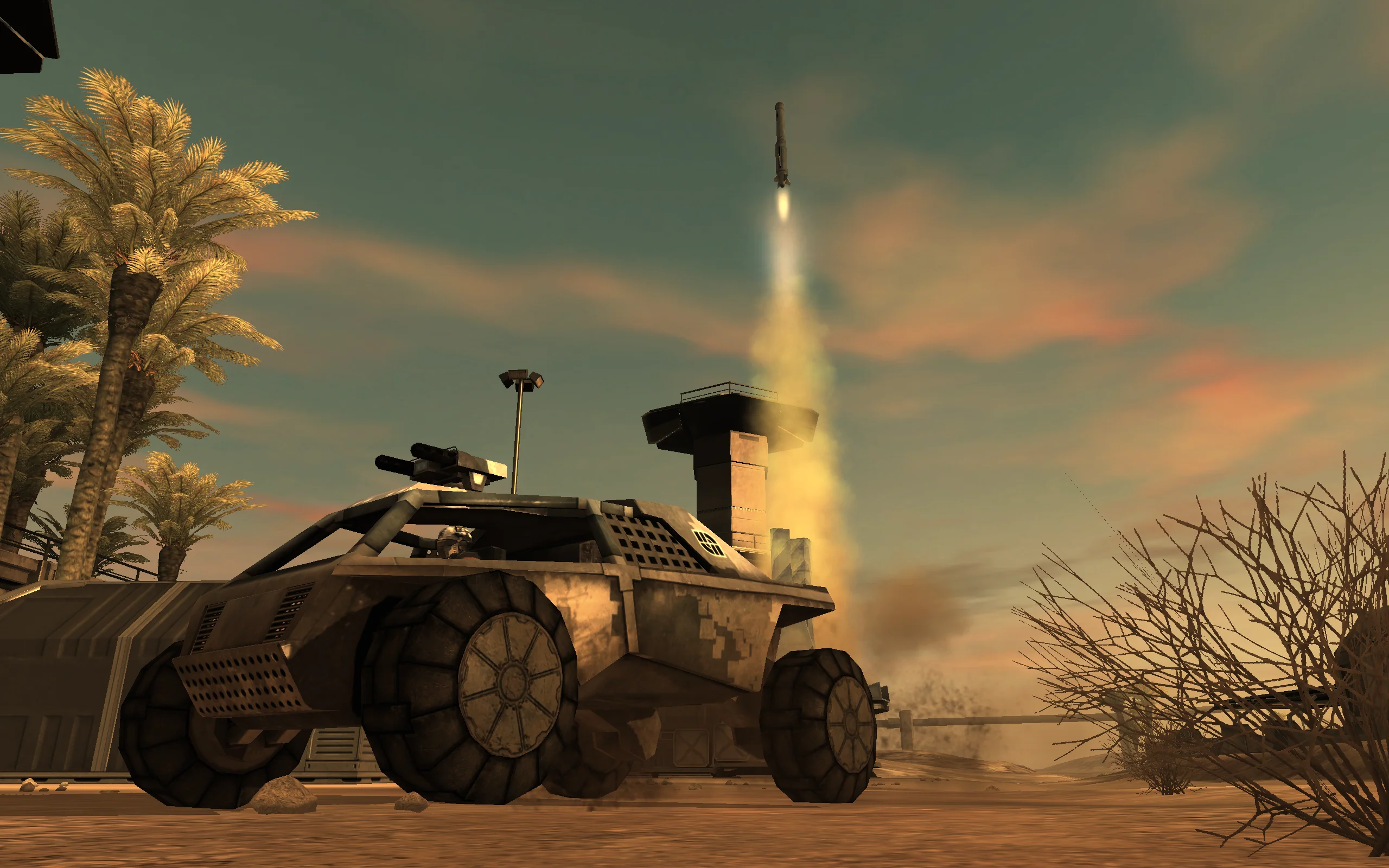
Source: ordinary_chicken @ BF2142 Reclamation
Setting up
Section titled “Setting up”-
Create a
Demosfolder inBattlefield 2142\mods\<MOD>, where<MOD>isbf2142for vanilla or your mod’s folder. -
Download and install BattleDirector from Downloads.
-
Open BattleDirector and give its Quick Help a read.
-
In Settings, set Game to Battlefield 2142 and Game EXE Location to your
BF2142.exe. -
Your recordings appear in the Launcher tab once you select the right Mod.
Recording a match
Section titled “Recording a match”In singleplayer or LAN
Section titled “In singleplayer or LAN”-
In-game, press
~to open the console. -
Type
demo.recordDemo NAMEand pressEnter. You’ll seerecordingDemoif it worked. -
To stop, type
demo.stopRecordingand pressEnter, or just let the match end. -
Your demo is saved in
Battlefield 2142\mods\<MOD>\Demos.
In multiplayer
Section titled “In multiplayer”-
Join a server with BattleRecorder enabled.
-
After the round, go to Community → Battle Recorder and download the demo under Bookmarks. It’s saved to
Documents\Battlefield 2142\Profiles\Default\demos. -
Copy it to
Battlefield 2142\mods\<MOD>\Demosto watch it in BattleDirector.
With the OpenSpy patches installed, demos don’t show up in the game’s own Battle Recorder library, so use BattleDirector to watch them.
Watching a match
Section titled “Watching a match”-
Start BattleDirector.
-
In Settings, set FPS, FOV, Hide Nametags and Hide HUD to your liking, and choose your Resolution (tick Windowed if needed).
For true widescreen, add
+widescreen 1to the second input box, along with any other launch options you like. -
In the Launcher tab, select the Mod the demo was recorded with, pick the demo and click Record New Track.
-
When the map has loaded, click JOIN GAME.
Controls
Section titled “Controls”Qopens the Play Rose for start, pause, speed and rewind. Don’t press Restart, as it breaks the recording.Topens the Camera Rose to switch players, or toggle between free and player camera.
Playback
| Key | Action |
|---|---|
1 |
Pause |
2 / 6 |
Normal speed |
3 |
5% speed |
4 |
25% speed |
5 |
50% speed |
7 |
150% speed |
8 |
300% speed |
Camera
| Key | Action |
|---|---|
Space / Shift + Space |
Next / previous player |
| Right mouse button | Toggle free camera and player camera |
| Mouse wheel | Zoom while following a player |
W A S D |
Move the free camera |
Ctrl / Shift |
Move the free camera down / up |
Console commands
| Command | Action |
|---|---|
renderer.drawHud 0 / 1 |
Hide / show the HUD |
demo.adjustDemoFov 90 |
Change the FOV, try 40 - 50 for cinematic shots |
demo.ShutdownDemo |
Exit the demo |
Downloads
Section titled “Downloads”Source: GameWatcher @ ModDB
Source: GameWatcher @ ModDB
Source: GameWatcher @ ModDB
Source: GameWatcher @ ModDB
Known issues
Section titled “Known issues”- BattleDirector won’t start and says “See the logfile … for details”? Install the Visual C++ 2003 runtime.
- Player gestures (like “Thank you” from the Q menu) don’t play back.
- Recording can pause or crash when the host player dies.
- AVI exports usually only work in windowed mode, as fullscreen AVIs can be corrupt.
- AVI files over 4 GB break. Keep clips small, or record with OBS instead. For example, 1520×855 (3.6 GB) works, while 1744×981 (4.1 GB) doesn’t.
Credits
Section titled “Credits”- higuy and HawkeAssault for their findings @ BF2142 Reclamation (BattleDirector SOP)
- Cheiftain_UK for the recording checklist @ Battlerecorder
- DMFDxUconn for BattleRecorder insights @ Battle Recorder Information