
Play Multiplayer
Time to join other players! Whether it’s a LAN party at home or a public server online, here’s how to get into a game.
Joining a LAN server
Section titled “Joining a LAN server”LAN servers show up in your local server browser and are open to anyone on the same network.
-
Select MULTIPLAY → LOCAL.
-
In the JOIN tab, click UPDATE LIST until the server appears.
-
Double-click the server to join.
The server isn’t showing up?
First, make sure you’re on the same network as the host. Then connect by IP instead:
- Select MULTIPLAY → ONLINE.
- In the ADVANCED tab, click CONNECT TO IP.
- Enter the server’s local IP (usually
192.168.x.x) and click OK. The host can see it on their loading screen.1
Still nothing? If a PC has several network adapters (e.g. from Hamachi, VirtualBox, VMware or a VPN), the game may use the wrong one. Disable the unused adapters, first on the host, then on each player’s PC.
Joining a public server
Section titled “Joining a public server”Public servers are listed in the online server browser and open to anyone on the internet.
-
Select MULTIPLAY → ONLINE.
-
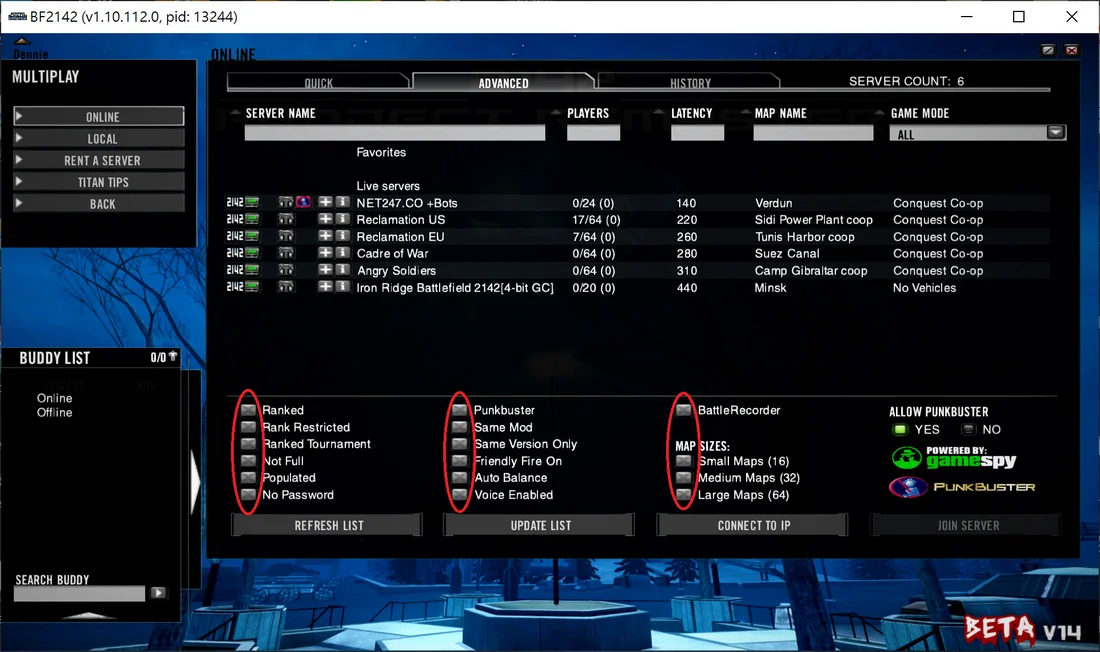
In the ADVANCED tab, untick all filter options and click UPDATE LIST. With filters on, the list usually stays empty.
-
Double-click a server to join.
Joining a private server
Section titled “Joining a private server”Private servers aren’t listed in the browser, but you can still join over the internet if you know the host’s public IP.
-
Select MULTIPLAY → ONLINE.
-
In the ADVANCED tab, click CONNECT TO IP.
-
Enter the server’s public IP and port (the default is
17567), then click OK.
Footnotes
Section titled “Footnotes”-
Playing over a VLAN or VPN? Use the IP address from that app, not your regular local IP. ↩